Tuesday, October 25, 2016

How to forward emails in FUHSD Gmail accounts

Teachers who are using Google Classroom know that all Classroom notifications and announcements go to students' FUHSD Gmail accounts. This year, student's School Loop contact email is also their FUHSD Gmail account. Unfortunately, not all students check their FUHSD Gmail regularly and may miss important teacher communications. There are a few ways around this. Students can either forward all their FUHSD email to a personal email account, or set up a filter to forward just certain emails.

Here's how to do both. First, add a forwarding address in Gmail. Go to settings by clicking the gear icon and choosing Settings.
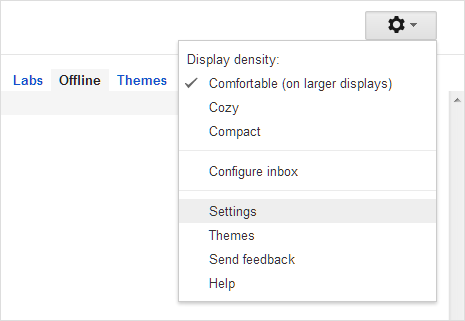

 Click the "Forwarding and POP/IMAP" and choose "Add a forwarding address".


Once you've added the email address, a verification message will be sent to the email address you've added. Click the link in the email to verify the new address.

To FORWARD ALL EMAILS, go back to Settings --> Forwarding and select "Forward a copy of incoming mail to". You can choose how to deal with the original emails (best choice is to either keep in the Inbox or to mark copy as read). Click "save changes" and you're done!


If you want to just forward certain emails, you can set up a filter. Click on "create a filter" from the Forwarding tab, or go directly to the Filters tab to do the same. You can filter emails based on criteria like sender, content or subject line. 


Once you've chosen your filter criteria, you can specify what to do with emails that meet those criteria. For this purpose, choose "forward it to" and then select the email address you've added. You can also use this same feature for other actions (like starring emails from specific people or automatically archiving emails on a certain topic). 

Tuesday, October 18, 2016

Voting using Google Classroom

Google Classroom recently added a small but useful function to its Question feature. In the past, students have been able to give short answers to teacher-posed questions, which could be private responses, or which other students could either see or see and respond. Classroom now gives your the ability to have multiple choice questions --again, where students can either see a summary of responses or where only the teacher can collect answers. This could be a great means for quick classwide formative assessments, but it's likely that many teachers will also deploy this feature as a fast means for taking a class vote.

Tuesday, October 11, 2016

The Explore tool in G Suite (formerly Google Apps for Education)

At the end of September, Google Apps for Education underwent a change of name to become G Suite for Education. This was mostly a marketing change but there's one notable addition and subtraction in Google Docs, Slides and Sheets. In the lower right corner of any Doc, Slides or Sheet document you'll see the Explore icon (you can also get to there in Docs and Slides through the Tools menu).

Explore opens a sidebar with Google search capability, which allows you to search the web, find and add images, and search your own Drive without leaving the document. In Slides and Sheets, the Explore tool will also make recommendations on design or formatting based on content. In Sheets, you can even use the tool to create formulas and charts or other data visualization.

Unfortunately, the addition of Explore is tempered by the loss of the Research Tool, which had similar functionality in Google Docs but also included the ability to add citations and footnotes directly into a doc. Since it's early days yet, the citation tool may be revived in the future.  

Tuesday, September 27, 2016

Submitting late work to Google Classroom

Google Classroom has lots of amazing features to streamline workflow and teacher feedback, but it does have some drawbacks or missing features. One potential problem is with work that is submitted late or resubmitted -- there's no notification for teachers to let them know that new work has been turned in. One way around this is to require students to leave a private comment on any work that is submitted late, or that is resubmitted, or for whatever reason needs special review. This creates an email to the teacher that includes both the comment and a link to the assignment for quick review.

Student adding a private comment
Email notification of new submission

You can see more of this at http://alicekeeler.com/2015/11/09/google-classroom-submitting-late-work/

Thursday, September 22, 2016

Rewordify to simplify online text

Rewordify is a flexible online tool that teachers and students can use to simplify text and to improve vocabulary. Students can use it to "translate" challenging English by defining difficult vocabulary within the text. Teachers can use it to create vocabulary lists and quizzes from specific texts. It's web-based, so it works on Chromebooks or most phones without issue. You can use it immediately with hard text (without logging in or setting up accounts), or you can set up  teacher and class accounts to create individualized assignments and track student progress. It's easy to modify to suit your needs. Quick and potentially very helpful tool!


Friday, September 16, 2016

Tech for good

I thought this was such a good idea. I'd love to see this start to happen at Homestead.

Friday, September 9, 2016

Make webpages more readable for students with EasyReader

Students who are easily distracted or need some visual supports when reading online may benefit from using the Chrome extension EasyReader. This extension strips out distractions like ads, sidebars or extra images, and allows users to customize the appearance of text (like increase the font or change the color contrast). It's easy to install and use on any device that uses a Chrome browser -- just click the extension, click the section of text you want to read and go.


Mercury News online article

Mercury News article with EasyReader